How to Take Full Screenshot of Any Website in HD (PC, Mobile & Chrome) – 2025 Guide
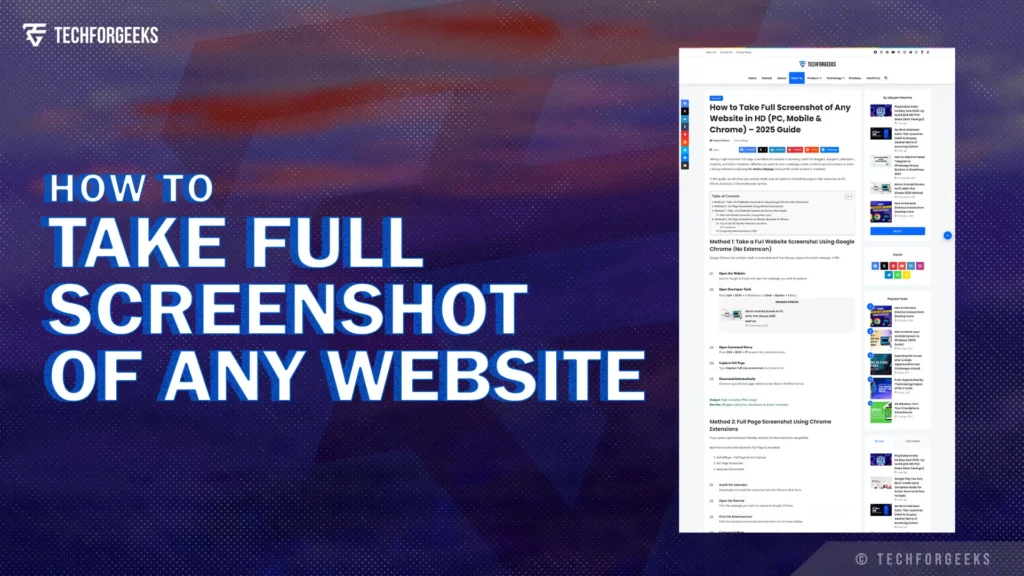
Taking a high-resolution full-page screenshot of a website is extremely useful for bloggers, designers, developers, students, and digital marketers. Whether you want to save a webpage, create a tutorial, archive content, or share a design reference, capturing the entire webpage (not just the visible screen) is important.
In this guide, we will show you several simple ways to capture a full website page in high resolution on PC, iPhone, Android, Chrome & Edge browsers for free.
Method 1: Take Full Screenshot of Any Website Using Google Chrome (No Extension)
Google Chrome has a hidden built-in screenshot tool that lets you capture the entire webpage in HD.
Launch Google Chrome and open the webpage you want to capture.
Press Ctrl + Shift + I (Windows) or Cmd + Option + I (Mac).
Press Ctrl + Shift + P to open the command menu.
Type Capture full size screenshot and press Enter.
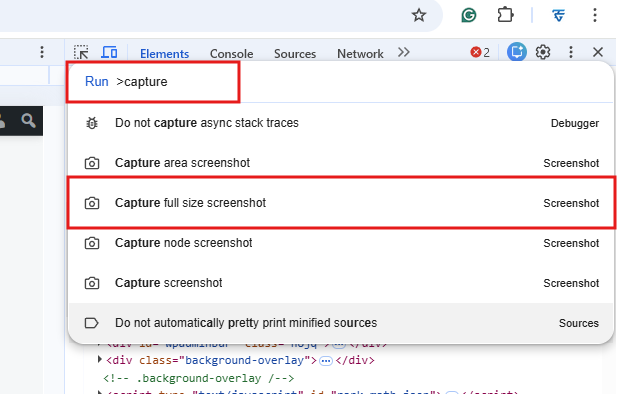
Chrome saves the full-page website screenshot in HD PNG format.
Best for: Bloggers, designers, developers & digital marketers
Method 2: Take Full Screenshot of Any Website Using Microsoft Edge (No Extension)
Press Ctrl + Shift + S on your keyboard in Microsoft Edge.
Select Capture full page from the Web Capture menu.
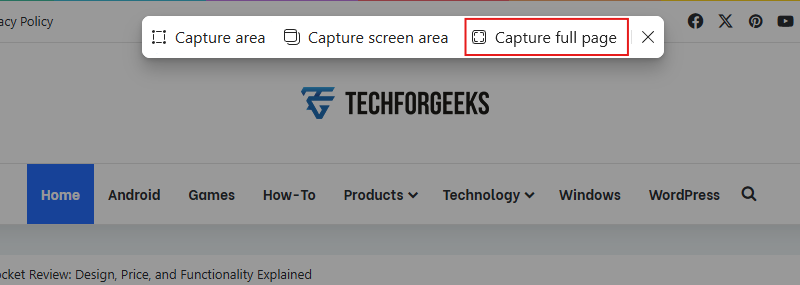
A preview will open where you can save or copy the screenshot directly.
Method 3: Full Page Screenshot Using Chrome Extensions
If you want a quick and user-friendly method, Chrome extensions are perfect.
Best Free Chrome Extensions for Full Page Screenshots:
Download and install the extension from the Chrome Web Store.
Visit the webpage you want to capture in Google Chrome.
Click the installed screenshot extension from the Chrome toolbar.
Choose the Capture Full Page option.
Download the captured screenshot in high resolution.
Method 4: Take a Full Website Screenshot Online (No Install)
Online screenshot tools allow you to capture entire webpages without installing anything.
Popular Free Tools:
Take Full Website Screenshot Using Online Tools
Visit any trusted online website screenshot tool in your browser.
Copy and paste the full URL of the webpage you want to capture.
Click the Capture Screenshot or similar button.
Download the generated screenshot in high resolution.
Method 5: Full Page Screenshot on Mobile (Android & iPhone)
Open the website you want to capture using Chrome on your Android device.
Tap the three-dot menu and select Share.
Choose Long Screenshot or Scroll Screenshot.
Adjust the page height and save the screenshot.
Take a normal screenshot while viewing the webpage in Safari.
Tap the screenshot preview thumbnail that appears.
Switch to the Full Page tab at the top.
Save the screenshot as a PDF or image.
Tips to Get HD Quality Website Screenshots
Always keep browser zoom at 100% to avoid scaling or blur in screenshots.
Desktop view ensures the full layout is captured instead of a compressed mobile design.
PNG preserves sharp text and UI details better than JPG.
Ads and popups can overlap content and ruin full-page screenshots.
DevTools captures screenshots directly from the browser’s rendering engine.
Conclusion
That is how you can easily take full screenshot of any website in HD on Chrome, Edge, mobile, online tools, and desktop software. Choose the method that will work best for you – fast capture, professional use, or mobile-optimised.
Bookmark this guide and share it with others if you found it useful!
Frequently Asked Questions (FAQ)
Can I capture a full webpage without using an extension?
Yes. You can capture a full webpage using Chrome DevTools or online website screenshot tools.
Which is the best free method to take a full website screenshot?
Chrome’s built-in Capture Full Size Screenshot feature is the best free option.
Is it possible to take HD screenshots on mobile devices?
Yes. Both Android and iPhone support long screenshots or full-page screenshots.
Which image format is best for website screenshots?
PNG format is recommended because it preserves text clarity and UI details.
Why does my screenshot sometimes look blurry?
Blur usually occurs due to incorrect zoom level, low resolution capture, or JPG compression.
Are online website screenshot tools safe to use?
Most popular tools are safe, but avoid capturing private or sensitive webpages.
Can I capture logged-in or password-protected pages?
Chrome DevTools and browser extensions can capture logged-in pages, while most online tools cannot.